
How to Edit Course Videos Like a Professional Without Hiring a Video Editor
In partnership with invideo
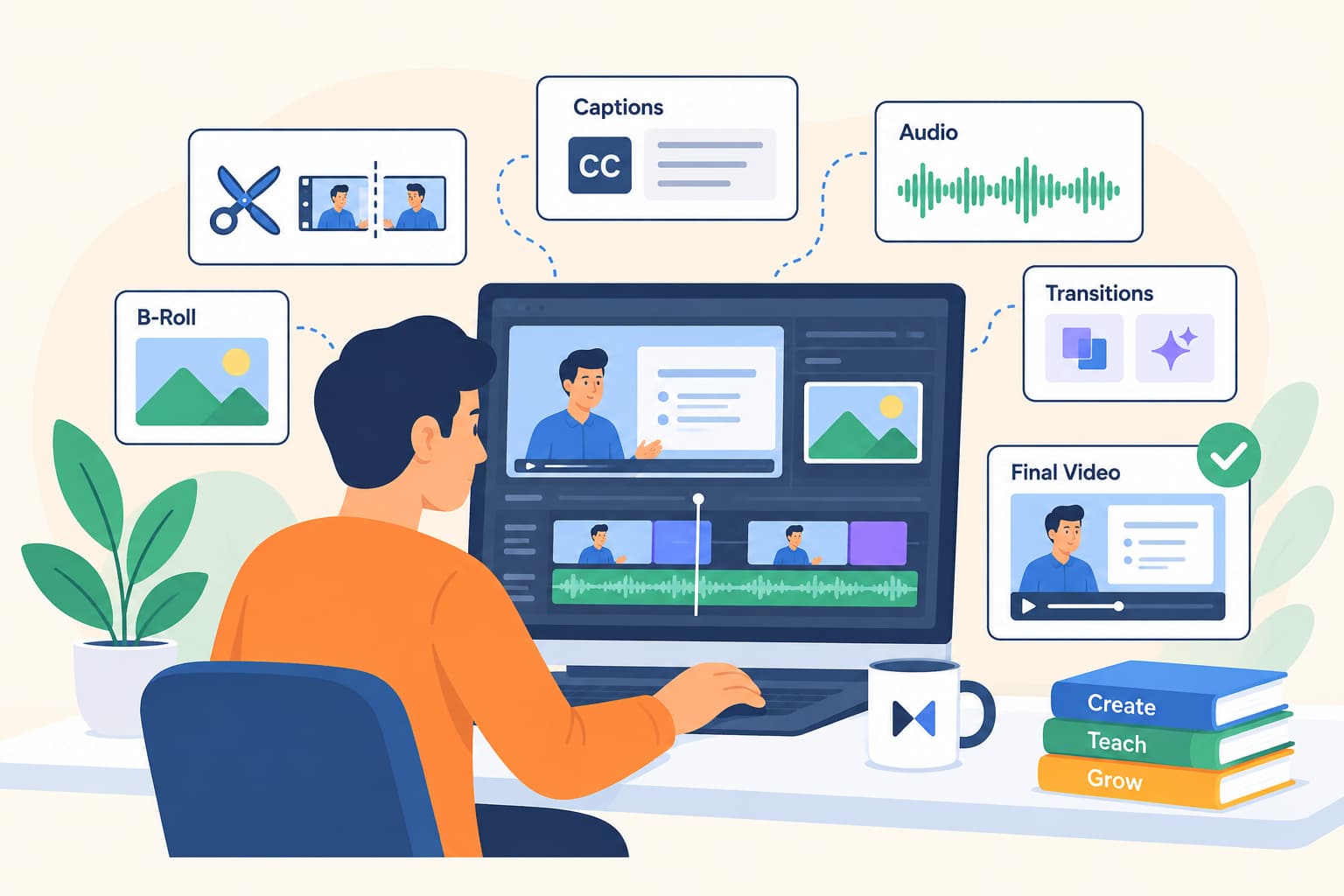
Creating an online course requires more than recording a teacher speaking in front of a camera. Modern learners expect clear explanations, engaging visuals, professional editing, captions, smooth transitions, and a structured learning experience.
For many educators and course creators, video editing becomes one of the biggest challenges in the course creation process. Recording a lesson may take an hour, but transforming that recording into a polished educational video can take several additional hours.
Creators often need to:
- Remove mistakes and unnecessary pauses
- Improve audio quality
- Add supporting visuals
- Insert B-roll footage
- Create captions
- Add graphics and animations
- Maintain consistency across multiple lessons
Traditionally, this required hiring professional video editors or learning complex editing software. However, AI-powered video workflows are changing how educators create course content. With tools like invideo, creators can combine AI-assisted planning and content generation with a professional editing workflow to produce high-quality course videos more efficiently.
Why Course Creators Need a Better Video Editing Workflow
Online courses often contain dozens of lessons. If every lesson requires manual editing from scratch, production becomes slow and expensive.
Cleaning Raw Recordings
Educational recordings often contain:
- Repeated explanations
- Long pauses
- Mistakes
- Unnecessary sections
Finding and removing these parts manually takes considerable time.
Creating Engaging Visual Experiences
A simple talking-head video may not always keep learners engaged. Professional educational videos often include:
- B-roll footage
- Diagrams
- Screen recordings
- Animated explanations
- Supporting visuals
These elements help explain concepts and improve viewer retention.
Maintaining Consistency
A complete course should have a consistent style across every lesson. Creators need to maintain:
- Similar colors
- Consistent branding
- Clear audio
- Professional formatting
An efficient workflow helps educators focus more on teaching while reducing production challenges.
Step 1: Plan Your Course Videos With invideo Agent
Before editing begins, successful course videos require proper planning. This is where AI video agents can help.
Invideo Agent works as an AI assistant that helps creators develop video ideas, generate scripts, plan scenes, and create visual concepts. For course creators, this can help during the pre-production stage.
For example, an instructor creating a course about digital marketing can use AI assistance to:
- Structure lesson ideas
- Create video outlines
- Generate scripts
- Plan visual explanations
- Suggest supporting footage
Instead of starting with a blank timeline, creators can begin with a structured content plan. This is especially useful for educators who understand their subject but may not have experience in video production.
Step 2: Generate Visual Assets and B-Roll Ideas
Educational videos become more engaging when concepts are supported with relevant visuals. However, finding suitable visuals for every lesson can be time-consuming.
AI-powered workflows can help creators develop visual elements such as:
- Concept illustrations
- Supporting footage ideas
- Scene suggestions
- Background visuals
For example, a finance course explaining investment concepts could include:
- Market charts
- Business footage
- Financial dashboards
- Industry-related visuals
A technology course could include:
- Software demonstrations
- Coding visuals
- Data animations
B-roll helps break the monotony of continuous talking-head footage and gives learners additional context.
Step 3: Edit Course Recordings Inside invideo Editor
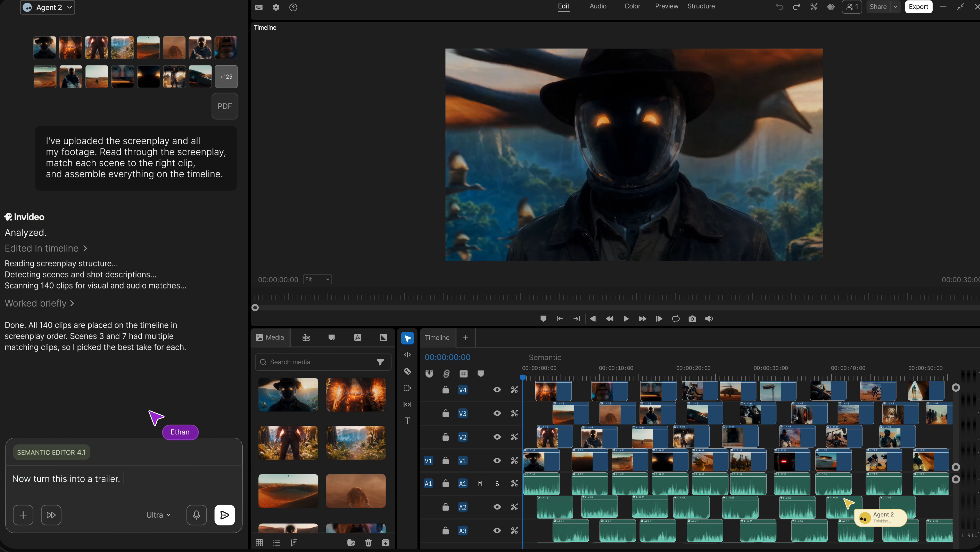
After planning the lesson and preparing visual assets, creators can move into the editing stage.
Invideo Editor provides a timeline-based editing environment where users can work with their footage, arrange clips, adjust audio, add visuals, and refine the final video.
The editing workflow allows creators to:
- Import recorded lessons
- Organize footage
- Cut unwanted sections
- Add additional media
- Adjust timing
- Create a final course-ready video
Unlike AI generation tools that focus on creating content from prompts, a timeline editor gives creators more control over the final production. This allows educators to combine automation with manual creative adjustments.
Step 4: Remove Mistakes and Improve Lesson Flow
A professional course video should have a smooth pace. Common editing improvements include:
- Removing repeated sentences
- Cutting long pauses
- Improving transitions between topics
- Creating cleaner lesson structures
AI-assisted editing features can help speed up these repetitive tasks, allowing creators to spend more time improving the teaching experience.
For example, a 30-minute recorded lecture can be refined into a more focused lesson by removing unnecessary sections while keeping the important explanations intact.
Step 5: Add AI Avatars for Scalable Course Content
AI avatars are becoming another option for educators who want to create scalable learning content. They can be useful for:
- Course introductions
- Short explanation videos
- Training modules
- Multilingual educational content
For example, a company creating employee training courses may use AI avatars to deliver standardized lessons across different regions.
AI avatars can support educators by providing additional content formats while allowing instructors to focus on creating valuable course material.
Step 6: Improve Audio Quality and Add Captions
Audio quality directly affects how learners experience an online course. Even strong educational content can feel less professional if the audio includes:
- Background noise
- Uneven volume
- Poor clarity
During editing, creators can improve audio by:
- Cleaning dialogue
- Adjusting volume levels
- Balancing background music
- Improving voice clarity
Captions are equally important for online learning. They help students:
- Follow lessons more easily
- Review important concepts
- Watch videos without sound
- Access content more effectively
Adding captions also makes courses more accessible for a wider audience.
Step 7: Apply Color Adjustments for a Professional Look
Visual consistency improves the overall quality of a course. Small adjustments to:
- Brightness
- Contrast
- Colors
- Skin tones
can make videos appear more professional.
Creators do not always need advanced cinematic grading. A consistent visual style across lessons is often enough to create a polished learning experience.
A simple color workflow can help ensure that videos recorded on different days still feel like part of the same course.
Step 8: Repurpose Course Videos Into More Content
One advantage of a professional editing workflow is the ability to reuse content. A single course lesson can become:
- Short educational clips
- Social media posts
- Course previews
- Promotional videos
- Email marketing content
AI-assisted workflows make it easier to identify useful sections and adapt content for different platforms.
This allows course creators to maximize the value of every recording.
Benefits of Using AI-Assisted Video Workflows for Course Creation
Faster Production
AI reduces the time spent on repetitive editing tasks, helping creators publish lessons faster.
Lower Production Costs
Creators can manage more of the production process without relying completely on external editors.
Better Learning Experience
Professional editing, visuals, captions, and improved structure create more engaging lessons.
Easier Scaling
AI tools help educators produce more content as their course library grows.
The Future of Online Course Video Production
The future of educational video creation will likely combine human expertise with AI assistance. Educators will continue focusing on:
- Teaching quality
- Course structure
- Student outcomes
- Subject expertise
AI will support areas such as:
- Content planning
- Visual generation
- Editing assistance
- Video optimization
The goal is not to replace educators or professional editors. Instead, AI helps remove repetitive production tasks so creators can focus on delivering better learning experiences.
Conclusion
Creating professional course videos no longer requires a large production team or advanced editing expertise.
By combining AI-assisted planning through invideo Agent with timeline-based editing workflows in invideo Editor, course creators can build polished educational videos more efficiently.
From generating ideas and visuals to editing footage, adding B-roll, improving audio, and creating engaging lessons, AI-powered workflows are making professional course production more accessible.
For educators who want to scale their online courses, adopting smarter video creation workflows can help them spend less time managing technical tasks and more time creating valuable learning experiences.
Either path works: edit it yourself with invideo, or skip recording altogether with MakeOnlineCourse.
✅ Ready to build your course? → MakeOnlineCourse.com
Related posts
- How to Color Grade Your Course Videos for a More Professional LookUse color correction and color grading to make your online course videos look consistent and professional across every lesson.
- How to Turn Long Lectures Into Engaging Microlearning Videos Using invideo EditorTurn long lecture recordings into focused, engaging microlearning videos with a structured editing workflow.
- The Future of eLearning Video ProductionHow AI is transforming the entire eLearning production cycle - from planning and visuals to AI avatars, localization, and smarter video editing.