How to Turn Long Lectures Into Engaging Microlearning Videos Using invideo Editor
In partnership with invideo
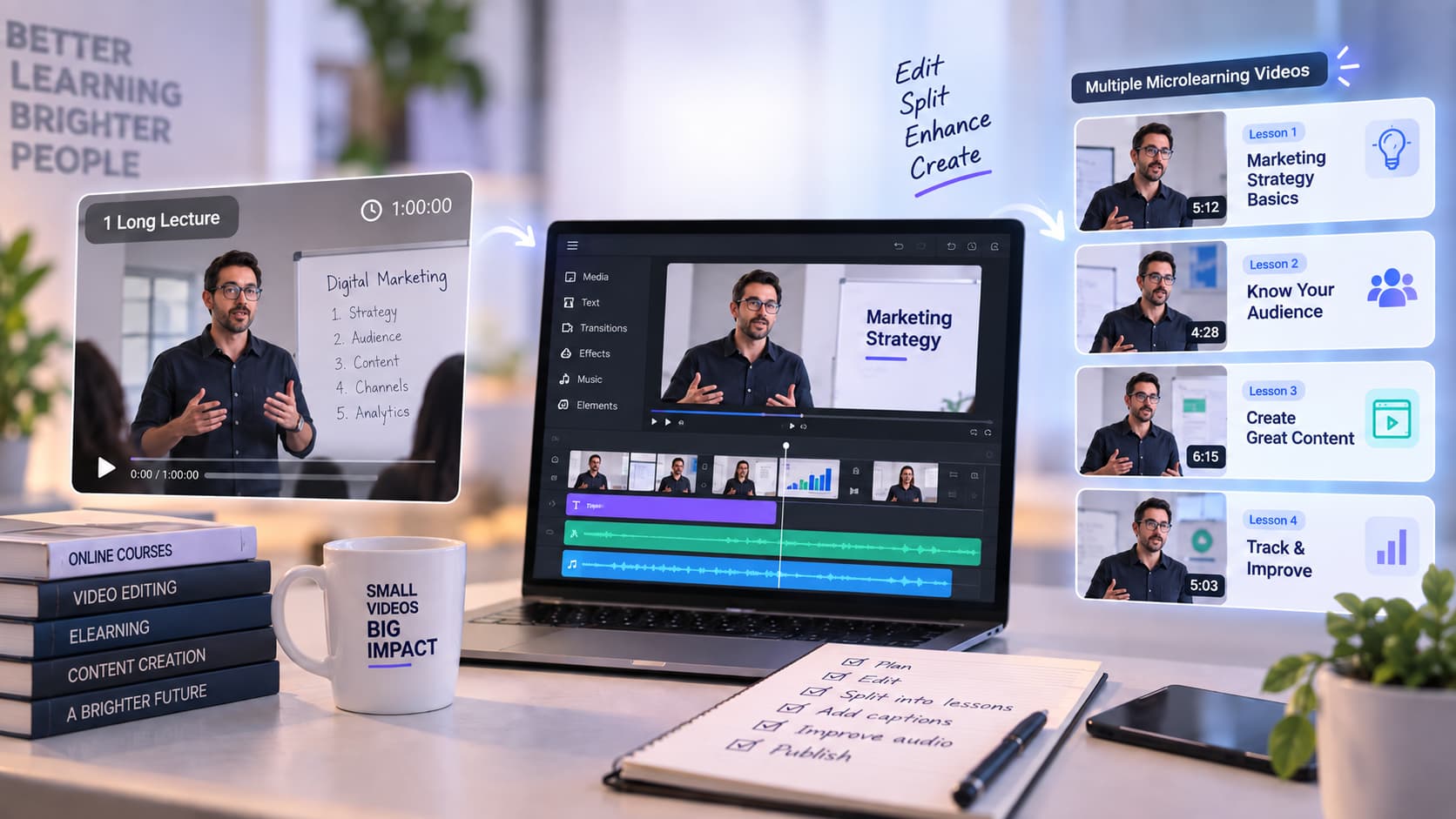
Creating online courses has become one of the most effective ways for educators, trainers, and businesses to share knowledge. However, as the demand for video-based learning continues to grow, course creators face a major challenge: producing engaging lessons consistently.
Recording a long lecture is only the beginning. A raw one-hour recording often requires extensive editing before it becomes a polished learning experience. Creators need to remove unnecessary sections, improve pacing, add supporting visuals, create captions, adjust audio, and format videos for different platforms.
This is where microlearning has gained popularity.
Instead of delivering lengthy lectures, microlearning breaks complex subjects into smaller, focused lessons. A long course recording can be transformed into multiple short videos, each covering a specific concept or learning objective.
However, creating these short lessons manually can be time-consuming. This is where a structured editing workflow with agentic video editing tools like invideo Editor can help course creators transform long recordings into professional, learner-friendly content.
Why Long Lectures Need Better Editing Workflows
Long-form lectures are valuable because they allow instructors to explain topics in detail. However, online learners often consume content differently compared to traditional classroom students.
A learner watching an online course may prefer:
- Short lessons focused on one concept
- Clear explanations without unnecessary sections
- Visual examples alongside explanations
- Captions for easier understanding
- Videos optimized for mobile viewing
A two-hour lecture may contain several different topics, repeated explanations, and moments that are useful during live teaching but unnecessary in a final course module.
For example, a business instructor may record a complete workshop covering marketing strategy, customer research, and analytics. Instead of publishing one long video, the content can be separated into individual lessons focused on each topic.
This makes the course easier to navigate and improves the overall learning experience.
Turning Raw Course Recordings Into Structured Lessons With invideo Editor
The first challenge in creating microlearning content is organizing raw footage.
Course creators often work with different types of recordings, including:
- Webcam lectures
- Screen recordings
- Software demonstrations
- Presentation-based lessons
- Interviews and discussions
Invideo Editor provides a timeline-based editing environment where creators can import their footage, organize clips, and refine their videos.
Rather than treating a recorded lecture as a single file, creators can use the editing timeline to identify sections that should become individual lessons.
A long recording can be divided into smaller chapters, allowing each video to focus on one specific learning outcome.
For example:
A programming course lesson could be divided into:
- Understanding the concept
- Writing the first example
- Common mistakes
- Practical application
This structure creates a more organized learning experience.
Removing Unnecessary Sections and Improving Lesson Flow
One of the most important parts of creating microlearning videos is improving pacing.
Raw recordings often contain sections that work well during live sessions but may not be necessary in a recorded course. These may include:
- Long pauses
- Repeated explanations
- Technical interruptions
- Off-topic discussions
- Preparation time
Editing helps remove these distractions and keeps learners focused.
With invideo Editor, creators can work directly on the timeline to trim clips, rearrange sections, and create a smoother viewing experience.
The goal is not just making a video shorter. The goal is making every minute more valuable for the learner.
A well-edited 15-minute lesson can often deliver more impact than a 45-minute unedited recording.
Adding B-Roll and Supporting Visuals to Improve Learning
Educational videos become more engaging when ideas are supported with visuals.
A common mistake among course creators is relying only on a talking-head format for every lesson. While instructor presence is important, additional visuals can help explain concepts more effectively.
B-roll and supporting visuals can include:
- Screen recordings
- Demonstration footage
- Images
- Charts
- Animations
- Supporting clips
For example, a finance instructor explaining investment concepts can include charts and market examples. A software instructor can add screen recordings showing the actual workflow.
Invideo Editor allows creators to combine different types of media within their timeline, making it easier to build lessons that balance explanation with visual support.
Improving Course Videos With Captions and Text Elements
Captions have become an important part of online education.
Many students watch lessons on mobile devices or in environments where audio may not always be available. Captions also improve accessibility for learners who prefer reading along while watching.
Adding text elements can also help highlight important information. Examples include:
- Key definitions
- Important steps
- Main points
- Chapter titles
- Lesson summaries
A well-designed educational video uses text strategically to reinforce learning without distracting from the instructor.
Improving Audio Quality for Better Learning Experiences
Audio quality is one of the most important aspects of educational videos.
Students may accept simple visuals, but unclear audio can make even excellent lessons difficult to follow.
Common issues in course recordings include:
- Background noise
- Uneven volume
- Echo
- Poor microphone quality
During the editing process, creators can improve audio consistency by adjusting levels and ensuring the instructor's voice remains clear throughout the lesson.
A professional audio experience helps learners focus on the content instead of production issues.
Creating Consistent Visual Quality Across Course Lessons
Many online courses are recorded over several days or weeks. Because of this, different lessons may have variations in:
- Lighting
- Camera settings
- Exposure
- Color appearance
Maintaining visual consistency helps create a more professional course experience.
Using color adjustment tools in the editing workflow, creators can improve consistency between different recordings.
Simple adjustments to brightness, contrast, and overall color balance can make lessons feel like part of the same course.
Creating Different Versions of Course Content
One advantage of microlearning is that the same educational content can be reused in multiple ways.
A single course lesson can become:
- A complete learning module
- A short promotional clip
- A social media video
- A preview lesson
- A revision resource
Invideo Editor helps creators prepare content for different publishing requirements by allowing them to adjust timelines, edit formats, and create versions suitable for different platforms.
For example, a detailed course lesson can be adapted into a shorter educational clip for social media without rebuilding the content from scratch.
Why Efficient Editing Matters for Course Creators
As online education grows, creators need workflows that allow them to produce more content without increasing production complexity.
A strong editing process helps educators:
- Publish lessons faster
- Improve video quality
- Maintain consistency
- Repurpose existing recordings
- Create better learning experiences
The purpose of tools like invideo Editor is not to replace the expertise of educators. Instead, they help reduce the technical workload involved in preparing educational content.
This allows instructors to spend more time improving their teaching methods and less time managing repetitive production tasks.
Conclusion
Microlearning is changing how online courses are created and consumed. Learners increasingly prefer focused lessons that deliver clear value without unnecessary distractions.
Transforming long lectures into engaging microlearning videos requires thoughtful editing, visual improvements, and a structured workflow.
With invideo Editor, course creators can organize recordings, refine timelines, add visuals, improve presentation quality, and prepare professional lessons more efficiently.
By combining strong educational content with a smarter editing process, creators can turn existing recordings into engaging learning experiences that better match the needs of modern students.
You can try invideo editor here: https://invideo.io/
Either path works: edit it yourself with invideo, or skip recording altogether with MakeOnlineCourse.
✅ Ready to build your course? → MakeOnlineCourse.com
Related posts
- How to Edit Course Videos Like a Professional Without Hiring a Video EditorPlan, edit, and polish professional online course videos using AI-assisted workflows - no video editor required.
- How to Color Grade Your Course Videos for a More Professional LookUse color correction and color grading to make your online course videos look consistent and professional across every lesson.
- The Future of eLearning Video ProductionHow AI is transforming the entire eLearning production cycle - from planning and visuals to AI avatars, localization, and smarter video editing.